Civilian
The Civilian Portal
Everything a resident of the city has on file lives here: who you are, what you drive, the papers in your pocket, your record with the courts, and the services you can call on. No sign-on and no duty status — the portal opens as soon as you pick Civilian on the department screen.
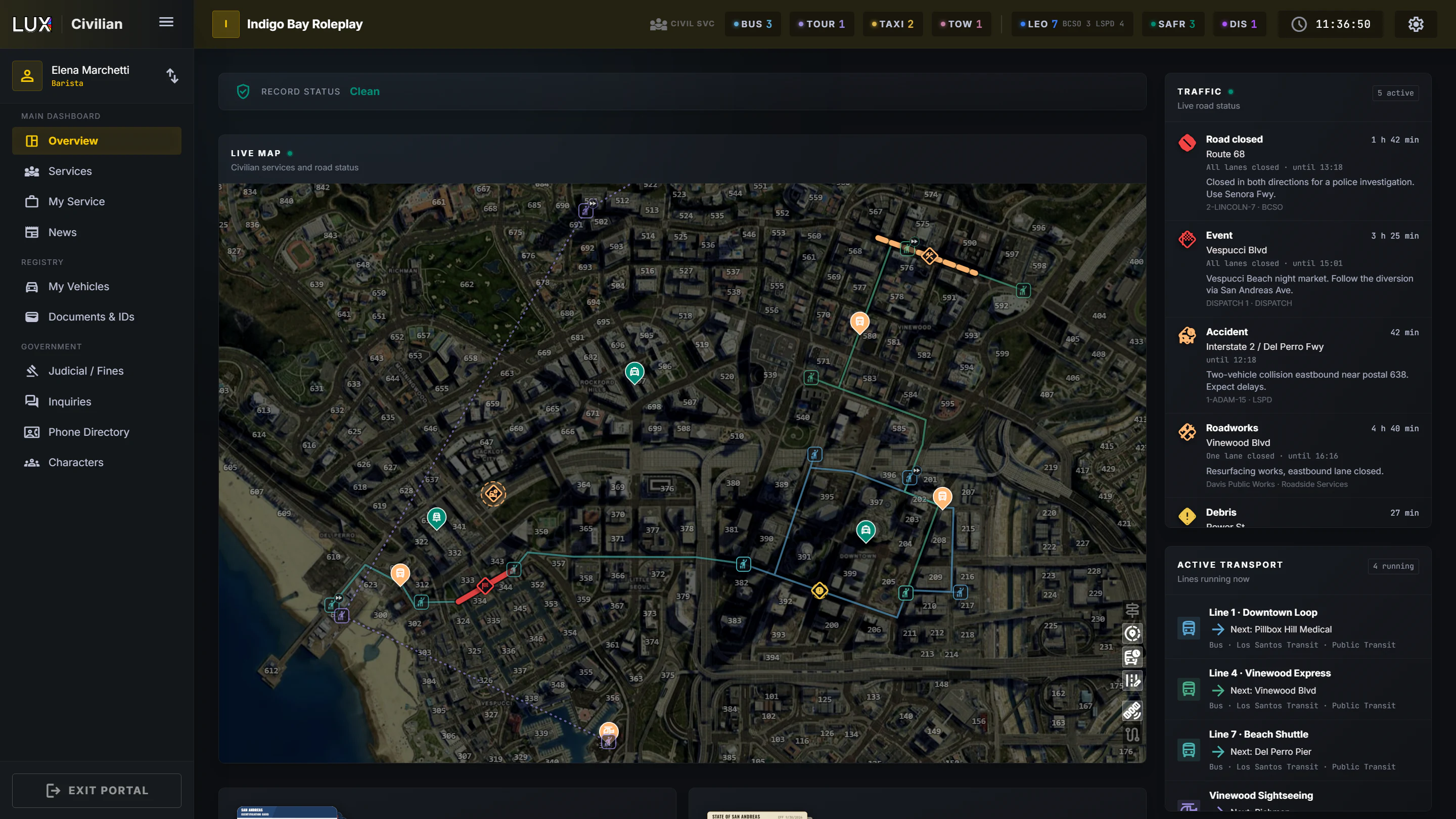
Everything hangs off a character
The portal always shows one character at a time — the one selected in the sidebar. Switch character and the vehicles, documents, phone number and judicial record all change with it. Your characters are entirely separate people; nothing carries over between them.
If you have not made one yet, start at Characters.
The dashboard
Record status sits in one line at the top: Clean, Warrant or Deceased. It is worked out live. Warrant means there is an active warrant out for this character right now, not a flag someone set by hand, and it clears by itself when the warrant is served or lifted — the line turns red while it is there. Deceased takes priority over everything else, and can be undone — see Characters.
Below that is the live map, and under the map two shortcuts — Documents & ID and Vehicles — showing a stack of your actual cards and registration papers, with how many licenses and vehicles you have. Click either to open the full page.
The live map
The map shows what is moving in the city right now:
- Civilian services on duty — taxis, tow trucks, reporters — when your community lets residents see them. Police, fire and EMS are never on it.
- Road status: closures, roadworks, accidents and hazards, the same ones as in the Traffic column.
- Routes: bus lines, tours and flights that are running right now, with their stops. They stay faint so the map keeps calm; click a line, a stop or the vehicle driving it and that route stands out. Click a stop for its name, the street it is on and the nearest postal. A small fast-forward mark on a stop shows which stop the vehicle is heading for.
The buttons in the bottom-right corner switch street names, services, routes and road status on and off, and change between Satellite and Roadmap. Your choices are remembered on this device.
On the in-game tablet the map opens on where you are standing. In a browser, or when your position cannot be found, it opens on an overview of Los Santos.
Scroll over the map to zoom it; scroll anywhere else to move the page. Click an entry in the Traffic column and the map flies to it.
Traffic
The narrow column on the right is live traffic information: every road closure, roadworks, event, accident, debris and hazard that is marked on the map right now.
- The worst comes first — closed roads, then restrictions, then things to watch out for. Within each, the newest is on top.
- Each entry shows the street, which lanes are closed, until when, and any note from whoever placed it.
- A new marking lights up briefly when it arrives. A marking leaves the list by itself when its time is up or when it is removed.
No traffic disruptions means exactly that. If your community does not show road status to civilians, the column is not there at all.
On a narrow screen the column moves underneath the shortcuts.
Active transport
Under Traffic, Active transport lists the lines running right now: the route name, the stop it is heading for next, and who is driving it. Click a line and the map flies to the vehicle and highlights its route.
It only appears when your community has a service with routes that residents can see. No lines are running right now means the service exists, but nobody is driving a route at the moment.
The sidebar
| Group | Pages |
|---|---|
| Main Dashboard | Overview · Services · My Service · News |
| Registry | My Vehicles · Documents & IDs |
| Government | Judicial / Fines · Inquiries · Phone Directory · Characters |
Services is where you ask for a tow, a taxi or a lawyer; My Service is where you work as one — see Civilian Services. While you are on duty, GO OFF DUTY appears at the bottom of the sidebar.
At the top sits your active character: photo, name and a switcher to change to another one without leaving the page. The button in the header folds the sidebar down to icons; hover one to see its label. The choice is remembered, and it is kept separate from the staff sidebar — collapsing here does not collapse your LEO or Dispatch sidebar.
On a tablet held upright the sidebar moves to the bottom of the screen as a tab bar, and the character switcher moves into the Characters page.
My Calls
Bottom-right of the dashboard is a floating My Calls button with a live count of your open calls. Open it and you get two things: a tracker following your own 911 and 311 calls in real time — including which unit is responding — and the form to file a new non-emergency report.
It keeps tracking while it is closed, so the count on the button stays current. See Reporting an Incident.