LEO
Reports & Charges
A report is the written record of police action against a person: an arrest, a notice to appear, a citation, a warning, or an ongoing investigation. Published reports become part of the community's criminal registry, show up in searches, and appear in the subject's own judicial file. Drafts stay inside the department until you publish them.
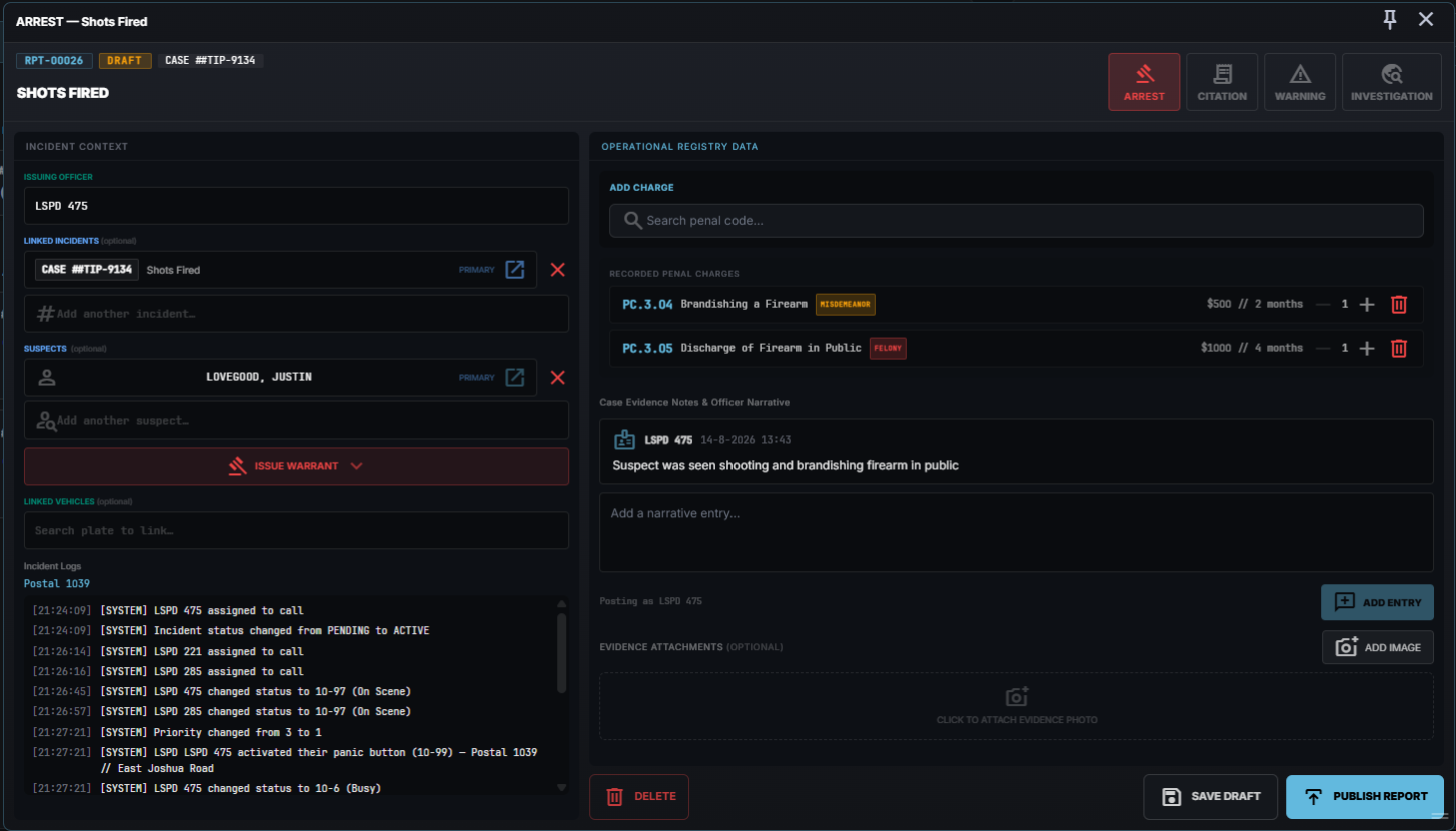
The report types
| Type | Use it for | Charges? | Subject required? | Court date |
|---|---|---|---|---|
| Arrest | someone taken into custody | yes | yes | yes |
| NTA | a notice to appear — charged, but not taken in | yes | yes | yes |
| Citation | a ticket or fine | yes | yes | yes |
| Warning | a documented warning, no penalty | no | yes | no |
| Investigation | an open case file — arson, a burglary series, anything still being worked | no | no | no |
| Trespass Notice | barring someone from a property at the owner's request | no | yes | no |
| Protection Order | recording a no-contact or restraining order a court has made | no | yes | no |
The last two may not be switched on for your community yet — see Which types you actually see below.
An NTA is an arrest report without the arrest. It follows the same rules — charges with fines and jail time, a subject required, the same sheet of paper — and differs in one thing: the header reads NOTICE TO APPEAR. Reach for it when someone is being charged but is not going into custody.
Court dates fill themselves in. On the three types that carry one, leave the Court date field alone and you get two weeks from the day the report was filed, worked out in your community's timezone. Set it yourself only when you know better; it has to be a plain date, and on a back-dated report it counts from the date on the report rather than from today. The types without the field do not show it at all.
Type dates and times the short way. Any date field on a report takes eight
bare digits in your community's own order — 23092026 where the CAD shows
day-first, 09232026 where it shows month-first — and tidies them up when you
leave the field. Times take 1500, 930 or just 15. Anything the CAD cannot
read is left alone rather than guessed at: the field snaps back to what was there,
so a typo never quietly becomes a different date.
Investigation is the odd one out. It is about the event, not about one person, so it needs no subject and carries no charges. It is also the only type that does not split per suspect (see below). Use it when you do not yet know who you are charging — the arrests come later, out of the warrants it produces.
A trespass notice and a protection order are a different animal from the rest. The other five record something that has happened and are finished the moment you publish them. These two start working when you publish: they run for a period, they name two people who both matter, and their whole point is that the next officer finds them again. Neither punishes anything — they make the next time an offence. Both carry their own fields (the property and the terms of the ban; the court, the conditions and how it was served) and both put the other party on the printed sheet alongside the subject.
Which types you actually see
Your community's admins decide, per type, which departments may create it and which may read it. So the list you get when you start a report — and the reports that show up in Reports — depends on the department you are signed on as, not on your Discord roles.
Two things follow from that:
- Signed on as Fire/EMS, you will not see your own arrest reports and citations. They are not gone. Sign on as police and they are all there. Reports tells you how many are hidden.
- Sign on first. Off duty you have no department, so the report list is empty by design rather than by accident — the screen says so instead of showing you nothing.
An admin can also switch a type off entirely. That only stops new reports being written; everything already filed keeps its label, its paper and its readers.
Starting a report
From an incident
This is the normal route, and the one that carries the most context across.
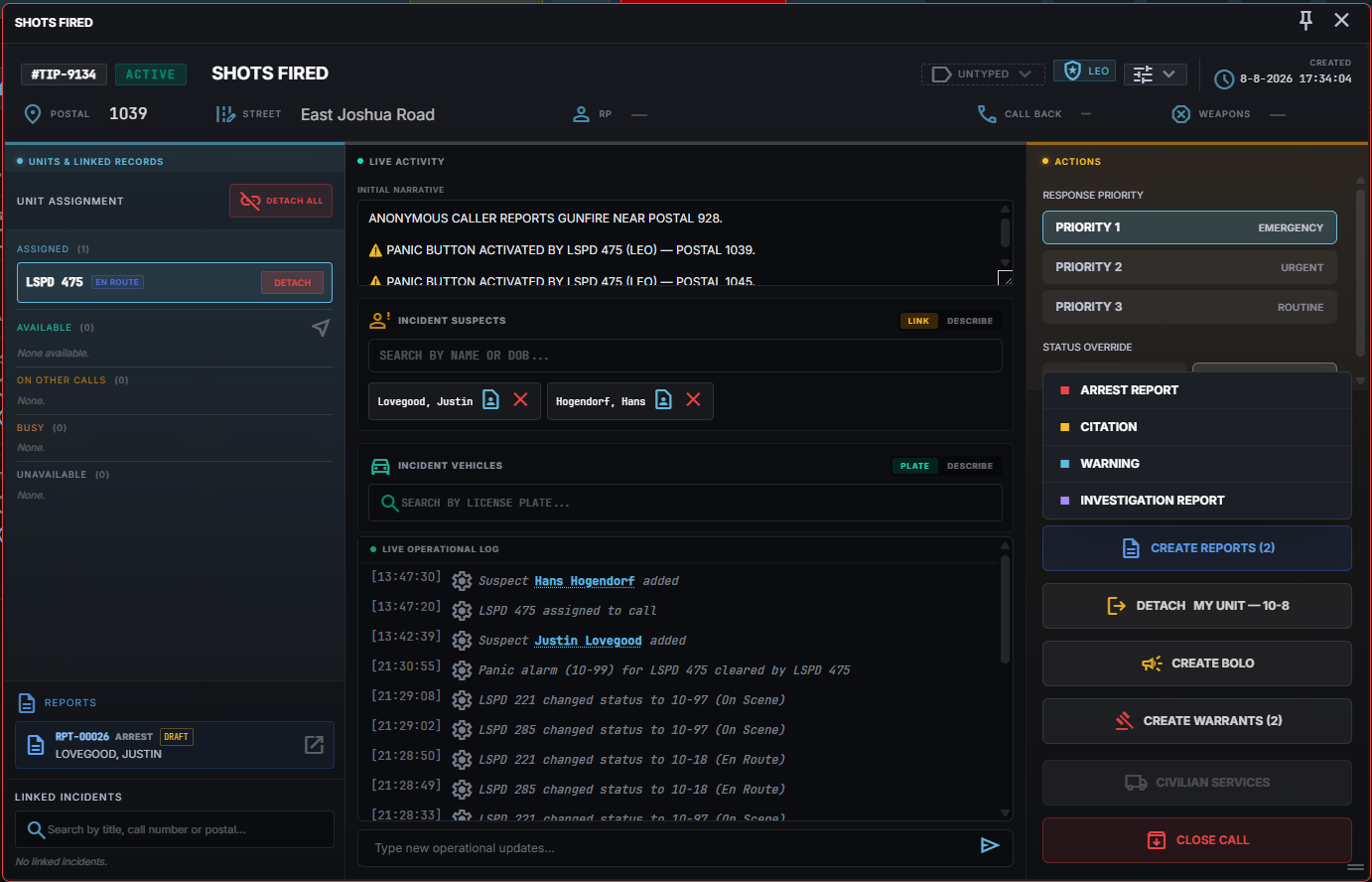
- Open the incident (DETAILS on a call, or from the incidents list).
- In the suspects panel, tick everyone the report should cover.
- Open the report button and pick the type.
One report per suspect. Tick three people on an arrest and you get three reports, one per person, each with that person as the subject — but you fill the contents in once, in a single bulk session. Charges, narrative, evidence and the title all land on every report in the session.
Investigation is the exception: it creates one file, with everyone you ticked — plus the suspects of any linked incidents — attached as involved persons. That is deliberate. Splitting an investigation per suspect would leave you with several half-files about the same event, none of which has the whole picture.
The incident's title, its details and its operational log are frozen into the report at that moment. Rename the incident later and the report keeps what was true when it happened.
Without an incident
- Reports → NEW REPORT — a blank draft. Link a person, a vehicle, a location and (optionally) an incident from inside the editor.
- From a person — open someone in the database and use Create report. They are attached as the subject straight away.
- From a vehicle — open a vehicle and use Create report. If the plate has a registered owner, that owner becomes the subject automatically.
Reopening the same button focuses the draft you already started instead of creating a second one.
Filling in the report
Title
The title is the line at the top of the editor — click it and type. It is prefilled with the incident's title when the report came from one, and you can change it at any time while the report is a draft.
Give it a real name if the report will be looked up later; an investigation called "Warehouse arson — Vespucci" is findable, and one left as Filing is not. The title is searchable from the sidebar search and the database pages, and it appears under the report number on the printed paper.
Involved parties, vehicles and incidents
A report lists everyone the case touches, not only the people you are charging. Search and click to attach; the × detaches.
Each person carries a role:
| Role | What it means |
|---|---|
| Suspect | the person the report is written against — the only role that carries charges |
| Victim | the person it was done to |
| Witness | saw it, is not accused of anything |
| Other Involved | everyone else who belongs on the record: a property manager, a parent, a passenger |
Your community's admins can rename these, so the words on your screen may differ. What they mean does not.
Suspects are the ones that behave differently. The first suspect is the primary one — that is the name the paperwork is issued in. Remove the primary and the next person moves up automatically. The other three roles are labels: they put the person on the record without accusing them of anything.
A role locks once that person has charges. The role pill stops opening, and that is deliberate — moving someone to Witness while charges are written against them would leave those charges pointing at somebody who is no longer a subject of the report. If you really have the wrong person as a suspect, take them off the report and add them back in the right role; that way you can see the charges go.
Someone you only have a description for cannot be a suspect here. On an incident you can type in "white male, red hoodie" without a name. On a report that person can be a witness, a victim or other involved, but not a suspect — a suspect needs a real record to hang charges and paperwork on.
The role can decide who gets to read the report. Depending on how your admins have set up each report type, being listed as a victim or a witness may mean that person sees the published report in their own civilian portal. Out of the box only the suspect sees it, an investigation is visible to nobody involved, and the two standing instruments — a trespass notice and a protection order — are visible to the suspect and the victim, because both sides are meant to hold a copy. See Report Types for how that is set.
Primary only decides whose name is on the paper. Everyone attached to the report has it on their record: open any of them in the database and the report is listed there, not only under the first name. The same goes for search — looking up a co-suspect by name finds the report, marked Co-suspect so you can see at a glance why it came up.
You can attach more than one incident. The first one stays the primary case number.
People the incident found after you started writing
The involved parties on a report and the ones on the incident are two lists, and that is on purpose: a call can involve ten people while the report is about two of them.
When you start a report from an incident, the people you ticked come across. What happens after that is the useful part:
Anyone added to a linked incident later shows up on the report as suggested. They sit in the list marked as a suggestion, and the report tells you how many are waiting on a decision. You either confirm them onto the report or dismiss them.
A suggestion that nobody decides on does not reach the published report. The editor says so before you publish, with a count, because "I assumed they were on it" is exactly the thing you find out too late.
Dismissing someone only takes them off this report. They stay on the incident, where they belong — you are saying "not relevant to this paperwork", not "this never happened".
So a witness who walks up to the scene an hour after you filed the arrest report is not lost, and is not silently added either. The next person to open the report sees the suggestion and decides.
The incident logs on a report are live. Switch between the attached incidents with the chips above the log box and you are reading the incident as it stands right now — including entries added after the report was written. A report no longer freezes a copy of the log at the moment you filed it, so an update from the scene reaches the case file without anyone having to redo the paperwork.
Charges
Only for Arrest and Citation.
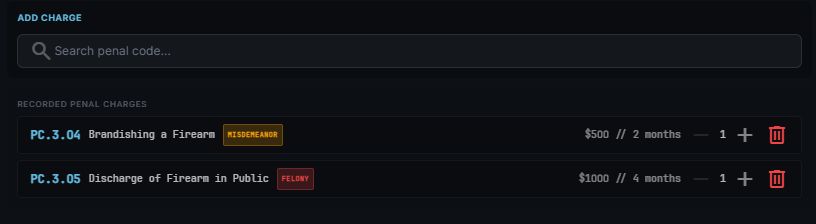
- Search the penal code by name or code.
- Set the fine and jail days if you want to override the defaults.
- Add it.
One line per offence, with a count. Charging someone three times with the same
offence gives you one line reading 3×, not three lines. The fine and jail days
you see are per count — the totals at the bottom multiply them out. Use the +
and − buttons to change a count; the bin removes the charge entirely.
Narrative
The narrative is a thread, not one big text box. Each entry is stamped with the callsign of whoever wrote it, so a report worked by several officers shows who said what. Add as many entries as the case needs; you can edit and delete your own.
Evidence photos
Drop images in from the evidence section.
- A photo is saved the moment you add it — you do not have to save the report first, and closing the editor will not lose it.
- Images are compressed automatically. Very large or extremely detailed pictures may be refused; crop them or use a smaller screenshot.
- Evidence is private. It is served only to people who may see the report, and a link copied out of the browser stops working shortly after.
Draft or published
A report starts as a DRAFT. Drafts are visible to your department, never to the person they are about.
PUBLISH files it to the criminal registry: it becomes searchable, it lands in the subject's judicial file, and the fine and jail totals become real. Publishing a bulk session publishes every report in it.
A report about a person cannot be published without that person. Every type that needs a subject in the table above refuses to publish until there is one, and nothing is filed. The editor names the person the paper is missing, in the words of that type — THIS REPORT NEEDS A SUBJECT IN CUSTODY on an arrest, A RESPONDENT on a protection order, A SUBJECT on a citation. In a bulk session that goes for every report in it; the message names the ones that are missing their subject. Investigation is the exception, because it is about an event rather than one person.
Changing the type of a draft to one that needs a subject sorts that out for you where it can:
- One person on the report — they become the subject.
- Several people — the CAD asks Which person is this report about? The first one in the list becomes the subject and the others stay on as involved parties. If that is the wrong person, remove them and add them again.
- Nobody yet — nothing changes; add the subject before you publish.
You can keep editing a published report, but the type can no longer be changed.
Issuing a warrant from a report
An investigation usually ends in warrants rather than in charges. From the report:
- Use ISSUE WARRANT(S) under the suspects.
- Tick who the warrant is for — everyone is selected by default, untick anyone who should not get one.
- CONTINUE opens the warrant form with the subjects, the charges from the report and a reference back to this report already filled in. Add the grounds and issue.
One warrant per subject, filled in once. The warrant keeps a link back to the report it came from, so anyone reading it can open the case file behind it.
Only LEO and dispatch see this button. See Warrants for what happens after a warrant is served.
Working on a report together
Reports update live. If a colleague adds a photo, a narrative entry, a charge or a suspect while you have the same report open, it appears in your editor without a refresh — and the same in the other direction.
Two things worth knowing:
- The field you are typing in is left alone. Incoming changes never overwrite the box your cursor is in, and the narrative entry you are editing stays yours.
- If two people type in the same field at the same time, the last save wins. There is no merge for a single field. Split the work — narrative entries are per person, so they never collide.
Finding a report back
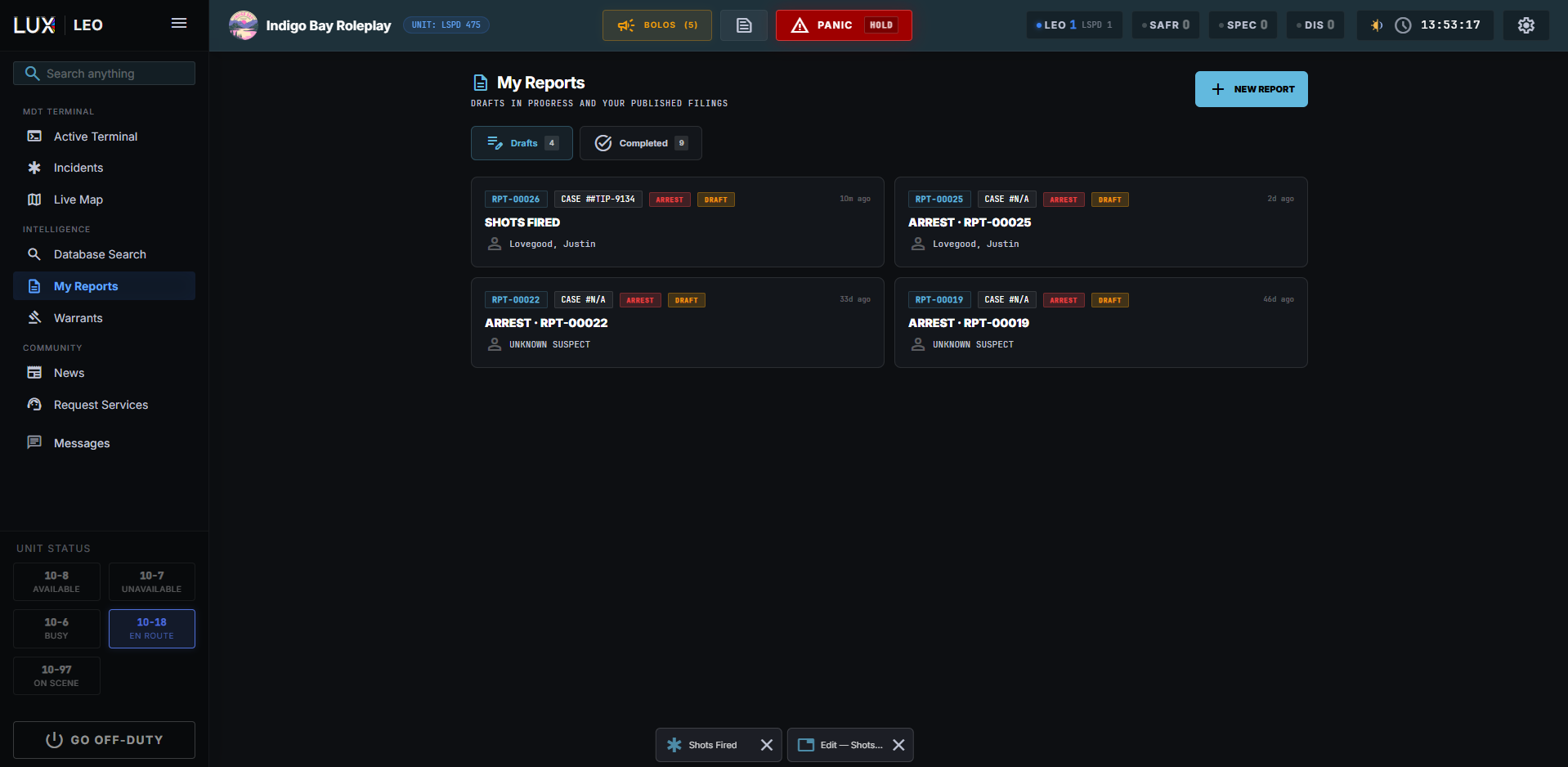
- Reports shows your work in two tabs. Drafts holds everything you have not published yet; a draft untouched for two days gets an amber dot. Filed by me lists what you published, 25 per page, newest report number first. Click a column name to sort by it, and the funnel next to it to filter that column. Reset filters sits at the top of every filter menu.
- Co-authored lists colleagues' reports where you added a narrative entry or an evidence photo, drafts included, so you can find back what you helped write.
- All reports lists every report your sign-on can open, including colleagues' drafts (marked Draft), so you can join in while it is still being written. Search here by name, plate, title or report number. New reports appear at the top as they are filed; if your mouse is in the list, a "new reports" button waits for you instead, so nothing jumps under your cursor.
- The Involved column shows who is on each report and in what role: suspect, victim, witness or patient. Search for a name and that person moves to the front, so you can see at a glance whether they were the suspect or the victim.
- Search finds a report by number (
RPT-00123,#123or just123), by title, or through the person, vehicle or incident attached to it. - A person's file in the database lists every report filed against them.
Printing and exporting
A published report can be rendered as an official document — an arrest report or a citation on paper, carrying the report number, the title, the charges and the signature block. See Documents & ID Checks.
Deleting
DELETE removes the report and everything attached to it: charges, narrative, evidence. In a bulk session it removes every report in that session. A draft with nothing in it is discarded instead, without a confirmation prompt.