Dispatch
Call Queue & 911
The Call Queue is the left column of the dispatch console. It lists every open call (incident) in your community in real time — 911 calls, calls you create yourself, panic alarms and unit-initiated incidents such as traffic stops. From here you triage calls, assign units, and open call details.
Reading a call card
Each card shows, top to bottom:
- Time the call came in (in your community's timezone).
- Priority —
PRIORITY 1(red),PRIORITY 2(orange),PRIORITY 3(blue), orPANIC BUTTON(red, pulsing) for panic alarms. - Call number — the unique reference for the call.
- Title and location (postal/location text
// address). - A status badge —
PENDING(orange) orACTIVE(green). - Assigned unit chips at the bottom. A unit that is speaking on the radio lights up green, and the whole card gets a green outline.
Filtering with the tabs
Three tabs at the top filter the list; each shows a live count:
| Tab | Shows |
|---|---|
| All | every open call (pending grouped on top, active below) |
| Active | only calls with units actively working them |
| Pending | only calls waiting to be assigned |
Closed calls drop off the queue automatically.
Working a call
- Single-click a card to select it (highlights it across the console).
- Double-click a card to focus it on the map.
- Hover a card to reveal the ASSIGN and DETAILS buttons.
- ASSIGN opens the assign-units picker — see Active Units & Assignment.
- DETAILS opens the full incident detail (caller info, narrative, charges, linked units and suspects) — see Incidents. A caller who filed anonymously shows there as Anonymous instead of a name; the queue card itself carries no anonymity marker.
- Drag a unit from the Active Units panel and drop it onto a card to assign it directly. The card shows a DROP UNIT HERE overlay while you drag.
- Right-click a card for quick actions: Detach all units, or Detach all units and close the call.
In Station Mode you can also drop a SAFR apparatus that is in quarters onto a card: that tones it out. An apparatus whose crew is busy shows on the card as a queued unit until its crew is free, and an Announce button can appear over the units to alert the station. See Station Mode.
Unit-initiated calls blink
When a unit starts its own incident, its card blinks for ~10 seconds so you
notice it immediately. Two things do that: a traffic stop
(/ts), and a unit filing a call from the game
with /cg.
A /cg call arrives untyped and on priority 2, with the unit already
attached and on scene. That is deliberate — the unit had a second to type a
title, not to triage. Setting the type and the real priority is your job, and
the incident card is where you do it.
Creating a call manually
Click NEW (top-right of the Call Queue header) to open the create-call form.
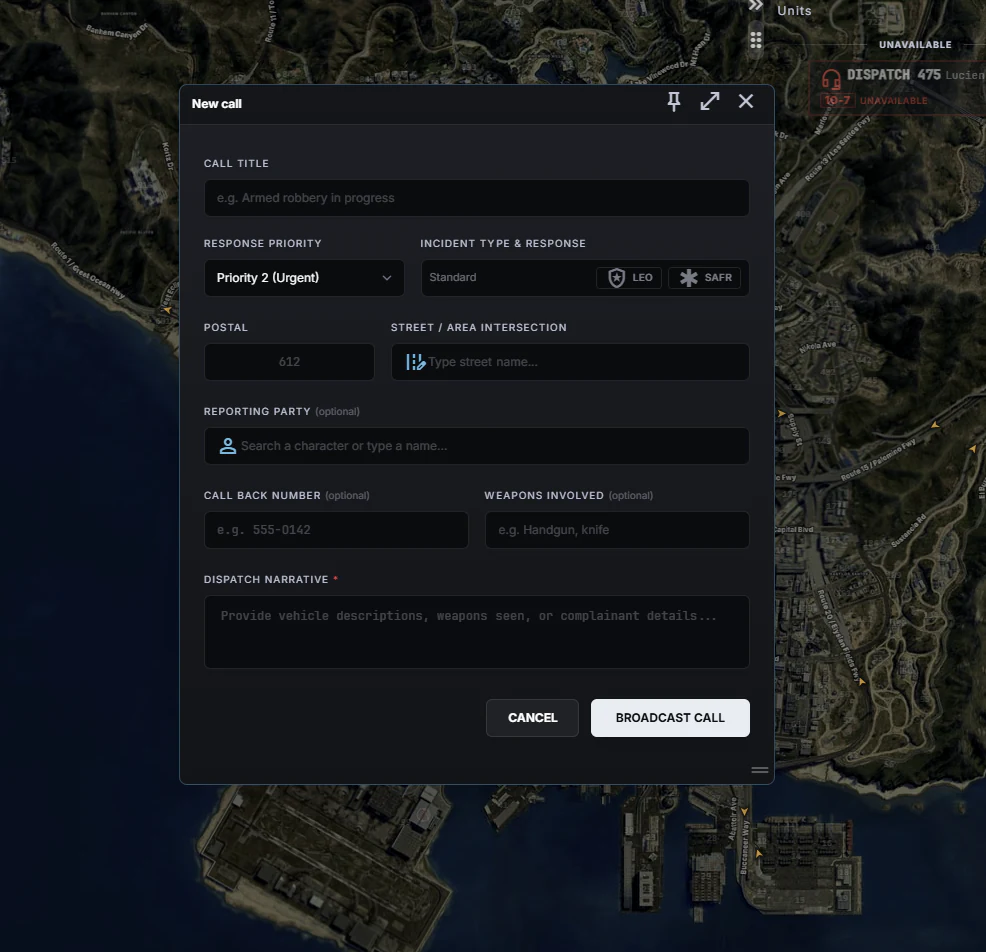
Fill in:
- Call title — a short summary of the call. This is also how you pick the incident type; see below.
- Priority — 1 (highest) to 3. Will follow presets for the incident types.
- Location — start typing a street to autocomplete; the nearest postal code is resolved automatically.
- Description — the narrative / details of the call.
- (Optional intake) Weapons involved, callback number, and the reporting party (free text, or link an existing character via lookup).
Submit, and the call appears in the queue for everyone in real time.
The title picks the type
There is no incident-type dropdown. You type the call title, and matching types appear underneath it as you go — from two characters onward. Click one and it binds: the type is set, prirority is set and the responding departments switch on from that type's own defaults.
This is deliberate. A community can easily run over a hundred incident types, and a list that long is unusable in the moment — especially on an in-game tablet. So the thing you were going to type anyway is the search.
The match runs against each type's label, code and synonyms, which is why
typing what the caller actually said tends to work: crash finds Traffic Crash
even though nobody named it that. Your recently used types are offered first.
If you think there are synonyms missing, your server admin can add them to types.
What happens to your title
Clicking a suggestion sometimes completes the title for you and sometimes leaves it exactly as you typed it. The rule is whether you have added anything the type does not already say:
| You typed | You click | Title becomes |
|---|---|---|
robb | Robbery | Robbery — half a word, completed |
crash | Traffic Crash - No Injury | Traffic Crash - No Injury |
structure fire warehouse | Structure Fire | structure fire warehouse — kept |
Your own detail is never overwritten. Once you have put something in the title that the type does not cover — an address, a shop name, a description — the title is yours and binding a type leaves it alone. And a later type change never touches the title at all; the completion only ever happens at the moment of binding.
The chip, and how to undo it
Once a type is bound it shows as a chip under the title. That chip is your confirmation that it worked — and it is the only way back out.
Clearing the words from the title does not unbind the type. Delete robbery,
type something else entirely, rewrite the whole line: the type stays exactly where
it is. The suggester also goes quiet the moment a type is bound, so no dropdown
fights you while you finish typing.
To change or remove the type, use the × on the chip. That returns the call to Standard — the untyped state every in-game call starts in — and the suggestions come back so you can pick a different one.
If you adjusted the responding departments by hand, unbinding keeps your selection rather than resetting it.
See Admin → Incident Types for how the types and their synonyms are configured.
911 and 311 voice calls
A live 911 voice call (a citizen calling while a dispatcher is online) is handled in the dedicated 911 layer, not as a queue card — you answer the voice call there first. Only once you create a call from it does it enter the Call Queue as a normal card.
If no dispatcher is online when a 911 comes in, it is dropped straight into the queue as a regular call so responding units still see it.
During a call
The call you are in sits in a green strip at the bottom of the screen, just above the panel dock. While you are in it, your push-to-talk speaks to the caller instead of the radio.
- HOLD puts the caller on hold. They see On Hold on their phone in-game and hear a short double beep every few seconds, and your push-to-talk goes back to the radio. RESUME picks the call up again. With more than one dispatcher on the call, the caller is only on hold when all of you are.
- CREATE CALL turns the conversation into a CAD call, prefilled from the caller.
- HANG UP ends the call. If another dispatcher is still on it, the button reads LEAVE and the call carries on without you.
Calling someone back
The callback number on an incident is a button, not just text. Click it to ring that player's phone in-game straight from the console:
- Click the number in the incident header, or the call button next to the Call back field.
- Confirm. The phone rings in-game, and the player sees the call as coming from Dispatch.
- Once they answer, it is a normal call: hold, create call, hang up.
This works for on-duty dispatchers at the dispatch console in a browser, in a community that uses the CAD's phone system. It is not available from the in-game tablet, and the button is off while you are already on another call.
The CALLS menu
CALLS in the dispatch topbar lists every call in play:
- incoming 911 and 311 calls, to ANSWER or DECLINE;
- calls in progress or on hold with another dispatcher, to JOIN;
- your own outgoing calls, marked OUT — a call started from an incident says Callback from an incident — to JOIN again or END.
If you are already on a call, the menu tells you to finish that one first.
See also: The Dispatch Console · Active Units & Assignment · Incidents · Panic Alarms.